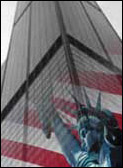
Tutorials > Photoshop > Image Blending
Learn how to blend two images together.
If the images on this page do not appear, please click here.
1. Open up any two images you would like to combine, however they need to be at the same resolution. My images are 72 dpi.
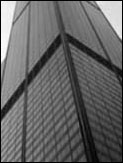
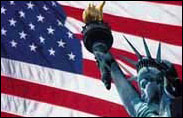
2. You will need to place them in one image, but in different layers, by dragging one image into the other. A new layer will automatically be created. Now select move tool (V key).
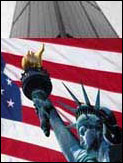
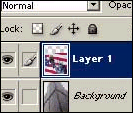
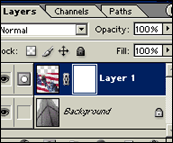
3. Click the layer mask button.  This will create a new layer mask. When you paint black into the mask it
allows the image underneath to show through. Where it is white, the underlying
layer will be hidden.
This will create a new layer mask. When you paint black into the mask it
allows the image underneath to show through. Where it is white, the underlying
layer will be hidden.
4. Select the gradient tool.("G" key) Make sure the fore and backgrounds are set to black and white("D" key). Select linear gradient and foreground to background. Then drag the gradient diagonally across the image from the bottom right to the center. Try many different angles until you find something you like.